Why your Bloomreach Engagement cookies expire after 7 days on Safari, what a Custom Tracking Domain does about it, and how to set one up properly, with the DNS tradeoff that most guides skip.
The problem
Bloomreach Marketing (Engagement)’s default tracking cookie (__exponea_etc__) is a first-party cookie. That sounds safe, but on Safari it’s not. Apple’s Intelligent Tracking Prevention (ITP), introduced in its current aggressive form in 2019, caps the lifespan of any first-party cookie set via JavaScript to seven days. The distinction that matters: it is the JavaScript-set part that triggers the cap, not the first-party part. A cookie set by a server through an HTTP response header is treated differently, and getting the cookie set that way is the whole point of a Custom Tracking Domain, covered below.
Seven days of visitor inactivity on Safari → the BR cookie expires → the returning visitor looks like a brand-new anonymous user, even if they subscribed to your newsletter weeks ago. Their customer profile, their session history, their consent state, all untethered from their next visit.
For e-commerce, this breaks a specific, high-value flow: cart and browse abandonment emails. Someone subscribes Monday, comes back the following Wednesday (9 days later), adds a product to cart, leaves. No recovery email fires because BR sees them as a new anonymous visitor with no email address.
Safari accounts for about half of US mobile browsing and roughly 30% of US browser traffic across all devices (StatCounter, mid-2026). For any retailer with meaningful Safari traffic, this is real revenue loss.
What CTD does
A Custom Tracking Domain (CTD) is Bloomreach’s answer to this. Instead of serving the BR tracking API from api.exponea.com (or api.eu1.exponea.com, eu2-api.eng.bloomreach.com, etc.), you serve it from a subdomain you own, typically something like cx.yourdomain.com or analytics-api.yourdomain.com.
The technical magic: when tracking requests come from your own subdomain, the BR server can set cookies directly via HTTP response headers (using Set-Cookie), instead of the JavaScript SDK setting them client-side. Safari ITP treats HTTP-set cookies differently, they’re not capped at 7 days the way JavaScript-set ones are.
Worth being precise about the mechanism, because it changes how you verify the setup later. With CTD active, Bloomreach runs two cookies: the familiar client-side tracking cookie, and a server-side HTTP cookie named xnpe_<project_id> set from your tracking subdomain with a long expiry. Per Bloomreach’s own documentation, the client-side cookie is still capped at 7 days on Safari even with CTD, but on the visitor’s next visit it is renewed from the long-lived xnpe_ cookie, so the visitor resolves to the same profile.
Result: returning Safari visitors after 8, 30, 90 days still resolve to the same BR profile, because the server-side cookie persists for the full expiration you configure (up to 3 years by default). Don’t be alarmed if the client-side cookie itself still shows short-lived behavior on Safari; profile continuity is carried by xnpe_<project_id>.
This is a real, measurable win: CTD survives Safari’s ITP across 8+ day gaps, where the default JavaScript-cookie setup loses the visitor. The business impact flows directly to abandonment campaigns: cart and browse recovery emails reach subscribers who would otherwise have been seen as brand-new anonymous visitors.
When CTD is worth implementing
CTD is not a default recommendation. Setting it up involves DNS changes, SDK reconfiguration, and a migration path for existing cookies. Worth the effort when:
You have a non-trivial share of Safari traffic (iOS-heavy markets: US, UK, Nordics, Australia)
Your BR use cases depend on returning visitor recognition: cart abandonment, browse abandonment, lifecycle triggers, behavioral segmentation across multiple sessions
Your customer journey spans days or weeks, not just a single session
You have measurable revenue dependent on abandonment emails or long-tail retargeting
Not worth it when:
Your BR use cases are single-session only (transactional emails triggered by immediate actions)
Safari traffic is < 10% of your users (think B2B or heavily Android markets)
You’re on a free or trial BR Engagement plan that doesn’t support custom domains
You don’t control the DNS for your main domain
There’s a second benefit worth mentioning: ad blocker resistance. Many ad blocker lists include Bloomreach’s default tracking domains (api.exponea.com, bloomreach.com). When BR is loaded from your own subdomain, it’s less likely to be blocked outright. This isn’t bulletproof (determined ad blockers match content signatures, not just URLs), but it raises the floor.
The DNS decision that matters: NS vs CNAME
This is where most implementation guides get vague, and it’s the choice that determines whether your CTD actually survives Safari ITP or falls back into the 7-day cap.
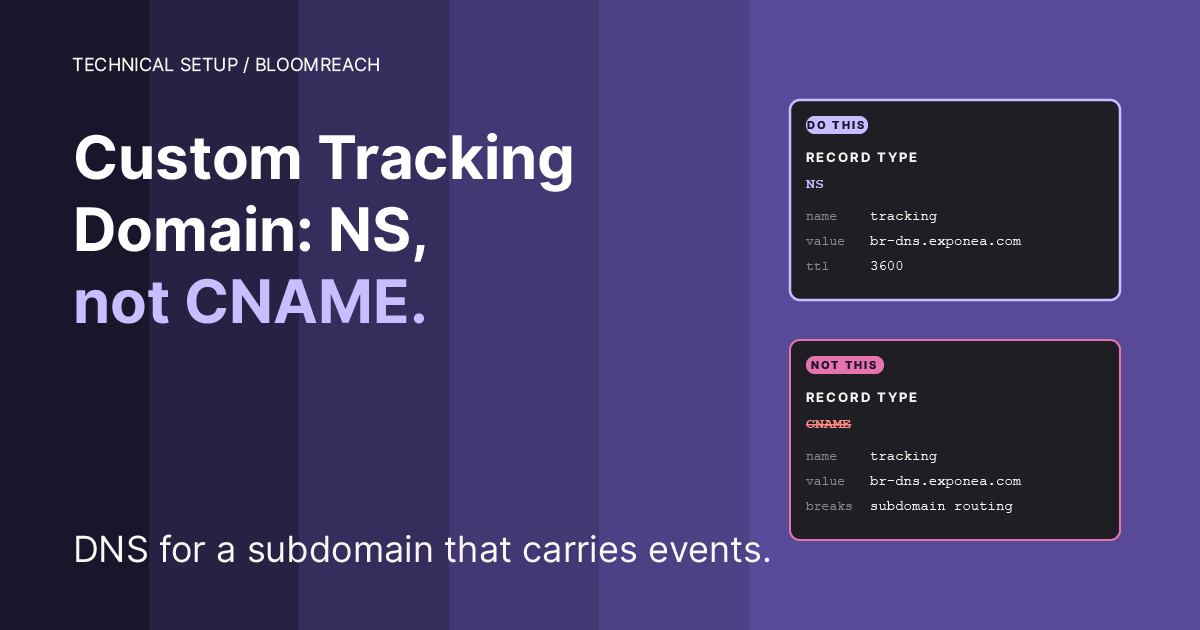
CNAME records. The easier setup. You create a CNAME record on your DNS pointing your subdomain (e.g., cx.yourdomain.com) at Bloomreach’s infrastructure. DNS-wise, this works. Your BR SDK serves from your domain. Problem: Safari ITP detects CNAME cloaking and, in its latest versions, still caps cookies at 7 days even when set via HTTP. The CNAME setup partially mitigates ITP but not fully.
NS records. The harder setup, with more moving parts. Instead of CNAME, you delegate the entire subdomain’s DNS zone to Bloomreach’s name servers using NS records. Effectively you’re telling the global DNS system: “for cx.yourdomain.com, ask Bloomreach’s DNS servers, not mine.” This makes Bloomreach’s infrastructure authoritative for that subdomain, which avoids the CNAME-cloaking signal Safari uses to trigger the 7-day cap.
The Safari 16.4 caveat you have to test for. In March 2023, Safari 16.4 extended the 7-day cap beyond CNAME cloaking. Independent developer documentation (Snowplow, Stape, addingwell) has confirmed Safari now also caps cookies when a subdomain’s A/AAAA records resolve to an IP address whose first half does not match the first half of the main site’s IP. For IPv4, the first two octets (first 16 bits); for IPv6, the first four groups. The rule is not in the public Safari 16.4 release notes. NS delegation to Bloomreach does not automatically escape it, because the final resolution still produces Bloomreach’s IPs, which typically sit in a different /16 range than your main site’s IPs.
Before trusting CTD on Safari, verify the IP alignment:
If the first two octets match on both, the setup is more likely to avoid this specific Safari cap, though you should still verify with an 8-plus-day test. If they don’t match, cookies are still capped at 7 days on Safari 16.4+, even with NS delegation. This is infrastructure-dependent: it can change as Bloomreach routes traffic through different edges or as your own hosting changes.
Reading the output: if both commands return IPs that share the first two octets (for example 104.18.x.x and 104.18.y.y), treat that as a match. If the leading octets differ (for example 104.18.x.x and 34.120.y.y), that is a mismatch, and Safari 16.4+ will cap the cookie. If a command returns multiple A records, check that the first two octets are consistent across all of them and against your main domain; mixed ranges should be treated as a mismatch until you confirm otherwise.
The tradeoff:
CNAME | NS | |
|---|---|---|
DNS setup complexity | Low (single record) | Medium (four records, zone delegation) |
CNAME-cloaking detection by Safari | Triggers the 7-day cap | Avoided |
Safari 16.4+ IP-match rule | Still applies | Still applies (depends on Bloomreach IPs vs your IPs) |
Profile persistence on Safari (via the | Capped at 7 days | Full expiry only if the A-record IPs align with your site’s IPs |
Revocability | Easy (delete the CNAME) | Requires coordination with BR support |
For Safari resilience, prefer NS over CNAME when Bloomreach supports it and your DNS team accepts the operational tradeoff, then verify IP alignment after setup. NS avoids one Safari rule (CNAME cloaking) but does not automatically clear the second (IP match). If the IPs don’t align, consider whether server-side tracking or a different hosting topology is the better path for Safari-heavy traffic.
Implementation
Step 1: Choose the subdomain
Pick a subdomain name. Common conventions:
cx.yourdomain.com(short, opaque, Bloomreach’s example: works well)analytics-api.yourdomain.com(descriptive, longer)track.yourdomain.com(clear but flags the domain as tracking-related, which some ad blockers target)
Use something unused, the subdomain must not serve any other content. It belongs to BR now.
Step 2: Add the domain in Bloomreach
In the BR Engagement webapp (verified against a live EU tenant, July 2026):
Click the ⚙ settings icon (top right)
Navigate to Account → General → Domains. Note this is account-level, not project-level, so you need account-level permissions to see it
Click + Add domain
Enter the subdomain you chose (e.g.,
cx.yourdomain.com)Select the type: Tracking domain
The modal presents both DNS options; add the records on your side (next step), then hit Save
Bloomreach’s own modal recommends the NS setup over CNAME, for exactly the tracking-prevention reasons covered above. For NS setup, you’ll see four NS records pointing at Google Cloud DNS name servers (in our tenant: ns-cloud-b1.googledomains.com. through ns-cloud-b4.googledomains.com.; use exactly the four your tenant shows, the letter/number set varies by DNS zone). For CNAME setup, the target is instance-specific (for EU tenants: custom-brx-api.eu.bloomreach.co).
Step 3: Add DNS records on your side
In your DNS provider (Cloudflare, Route 53, GoDaddy, whichever):
Go to the DNS zone for your main domain
Add the four NS records Bloomreach provided, targeted at the subdomain (e.g.,
cx.yourdomain.com, record type: NS, values: the four name servers Bloomreach gave you)Important: don’t add these as NS records on your root domain, only on the specific subdomain. Delegating the root to Bloomreach would break your main site.
Save
DNS propagation typically takes 5-30 minutes but can be up to 48 hours depending on TTL. Test propagation using a DNS checker tool or command line:
You should see the four Bloomreach name servers listed as authoritative.
Step 4: Verify domain activation in Bloomreach
Back in the BR Engagement webapp:
Return to Account → General → Domains
Wait for the domain status to change to Active or Verified
If it stays pending for more than an hour, check your DNS records are correct, most failures are typos in the NS record values
Separately, Bloomreach issues an SSL certificate for the subdomain after DNS propagates. This can take a few hours on its own. The domain isn’t usable until the certificate is issued; if it still hasn’t issued several hours after DNS checks out, contact Bloomreach support rather than re-doing the DNS records
Step 5: Update your tracking SDK snippet
Once the domain is verified, BR Engagement will provide an updated SDK snippet. The change is minimal, just the target URL in the exponea.start() config switches from the default to your new subdomain:
(The config key for the project token varies between BR-generated snippets, usually token in current docs and projectToken or project_token in older integrations. Keep whatever your live snippet already uses; the change that matters is only the target URL.)
And the SDK script source URL changes the same way:
Update this in:
Your GTM Bloomreach init tag (if loaded via GTM)
Any direct
<script>tags in your site’s head (if loaded directly)Mobile SDK configuration (if you use iOS or Android BR SDKs)
Step 6: Deploy and verify
After deploying the updated snippet:
Open your site in a fresh browser window
DevTools → Network tab → filter by
exponeaConfirm the SDK is loaded from your subdomain (
cx.yourdomain.com/js/exponea.min.js) not fromapi.exponea.comDevTools → Application → Cookies → check that the server-side
xnpe_<project_id>cookie is set under your tracking subdomain. This is the cookie that proves CTD is working: it arrives via an HTTPSet-Cookieresponse header (you can confirm that in the Network tab on a tracking request), not via JavaScript. The regular client-side BR cookie will be there too.On Safari: a cookie’s
Expires/Max-Agecolumn often shows the full multi-year horizon even when ITP is capping the cookie in practice, because Safari enforces the 7-day cap at storage-access time, not at write-time. The Expires value is not a reliable diagnostic on its own.The real test is whether a return visit after an 8+ day gap in Safari still resolves to the same BR profile. Remember the mechanism: the client-side cookie may well have expired in the meantime. What matters is that it gets renewed from the long-lived
xnpe_<project_id>cookie and the profile continues. If the visitor comes back as a new anonymous profile instead, re-run thedigIP-match check from the DNS section; you are likely hitting Safari 16.4’s IP-mismatch cap.
Step 7: Monitor migration
Existing visitors who had a JavaScript cookie from the old domain should not be expected to carry over to the HTTP cookie. Expect them to appear as new visitors once, then the new HTTP cookie takes over from that point forward. This creates a one-time inflation in “new visitor” counts for a few days post-migration. Expected, not a bug. Document it in your reporting so analysts don’t panic.
Common mistakes
Using CNAME instead of NS. The most common mistake, because CNAME is easier. Setup completes, everything looks fine in testing, Safari visitors still expire at 7 days. If you’re doing this at all, use NS.
Using a subdomain that’s already in use. If cx.yourdomain.com already has an A record or CNAME pointing somewhere, the NS delegation conflicts and the setup fails silently. Use a genuinely unused subdomain.
Leaving the BR SDK snippet pointing at the old domain. DNS works, domain is verified, but nobody updated the target in the SDK config. The cookies still come from the old domain. Verify in the Network tab.
Forgetting GTM vs direct snippet in a client’s setup. Some clients load BR in two places, once via GTM for some pages, once as a direct script tag for others (legacy pages, checkout flows, whatever). Update all instances. One missed snippet means a chunk of traffic still gets the 7-day cap.
Assuming it fixes cross-domain tracking. It doesn’t. CTD restores first-party tracking on a single domain. If your traffic spans multiple domains (e.g., main site + checkout on a different subdomain + help center on a different domain entirely), CTD doesn’t bridge them. You need different strategies for cross-domain, typically manual cookie-sharing or server-side tracking.
Relationship to the other manuals
CTD pairs with the GA4 client ID capture pattern we cover in a separate manual. The two serve different purposes and complement each other:
CTD keeps the BR customer profile stable across time on Safari (beyond 7 days)
GA4 client ID capture links the BR profile to the GA4 session identity at the moment of visit
For a retailer with Safari traffic and cross-tool analytics needs, you’d want both. CTD alone gives you stable BR identity but no link to GA4. Capture alone gives you a GA4 link per visit but loses the BR identity after 7 days of Safari inactivity.
What this doesn’t solve
Cross-device tracking. A user on iPhone Safari and then laptop Safari still has two separate BR profiles unless they identify themselves (login, form submission) on both. CTD stabilizes per-device identity; it doesn’t bridge devices.
Cookie clearance. If a user clears their cookies or browses in Private/Incognito mode, BR sees them as fresh. CTD doesn’t help here and nothing really can at the browser level.
Consent denial. If a visitor denies
analytics_storageconsent, BR shouldn’t be tracking them at all. CTD doesn’t bypass consent; it just makes the tracking more reliable for visitors who have granted it.Server-side tracking gaps. CTD is a frontend solution. If you also want server-side tracking (for checkout confirmation, backend events, payment webhooks), that’s a separate setup: see Bloomreach’s documentation on server-side tracking for the full pattern.
Further reading
Bloomreach’s own documentation covers the mechanics thoroughly: Custom Tracking Domain (CTD) and Custom Domain Management. Both are worth reading for the full setup reference. Where those guides stop short is on the NS-vs-CNAME question and on Safari 16.4’s A-record IP-match rule, which together determine whether CTD actually delivers long-lived cookies on Safari. That’s what this manual exists to cover.
For deeper context on how Bloomreach handles anonymous identity across the full flow, see Server-side anonymous identity management. CTD is one of three approaches Bloomreach documents there, alongside server-side GTM and fully custom server-side identity handling.
Work like this is a normal part of our client engagements; if you would rather hand it off, talk to us.
Custom tracking domains are part of the standard setup we deliver as a Bloomreach implementation partner.
Read next
Bloomreach Cookies and Domains. The full reference for the
__exponeacookies and Bloomreach endpoints this manual touches. (Link when MA017 ships.)The Bloomreach Marketing (Engagement) Console Error You Probably Don’t Know You Have: the legacy GA integration that breaks on GA4-only sites
Capturing GA4 Client ID in Bloomreach Marketing (Engagement): the modern way to stitch BR and GA4 identity
Your Framer Cookie Banner Looks Compliant. It Isn’t.: consent setup that all BR tracking depends on
WRITTEN BY

Jan Sacha
Co-Founder · Bloomreach Consultant
Bloomreach Marketing (Engagement) consultant, in his third year at Asteroad running daily CDP and marketing automation work for European clients. Former Exponea enterprise consultant and CEO of Digiline.


Rather have us set it up for you?
Every manual here comes from real implementation work. If you would rather hand it off, tell us what you are trying to set up. We will listen first. No pitch, no commitment.